
Event Lab
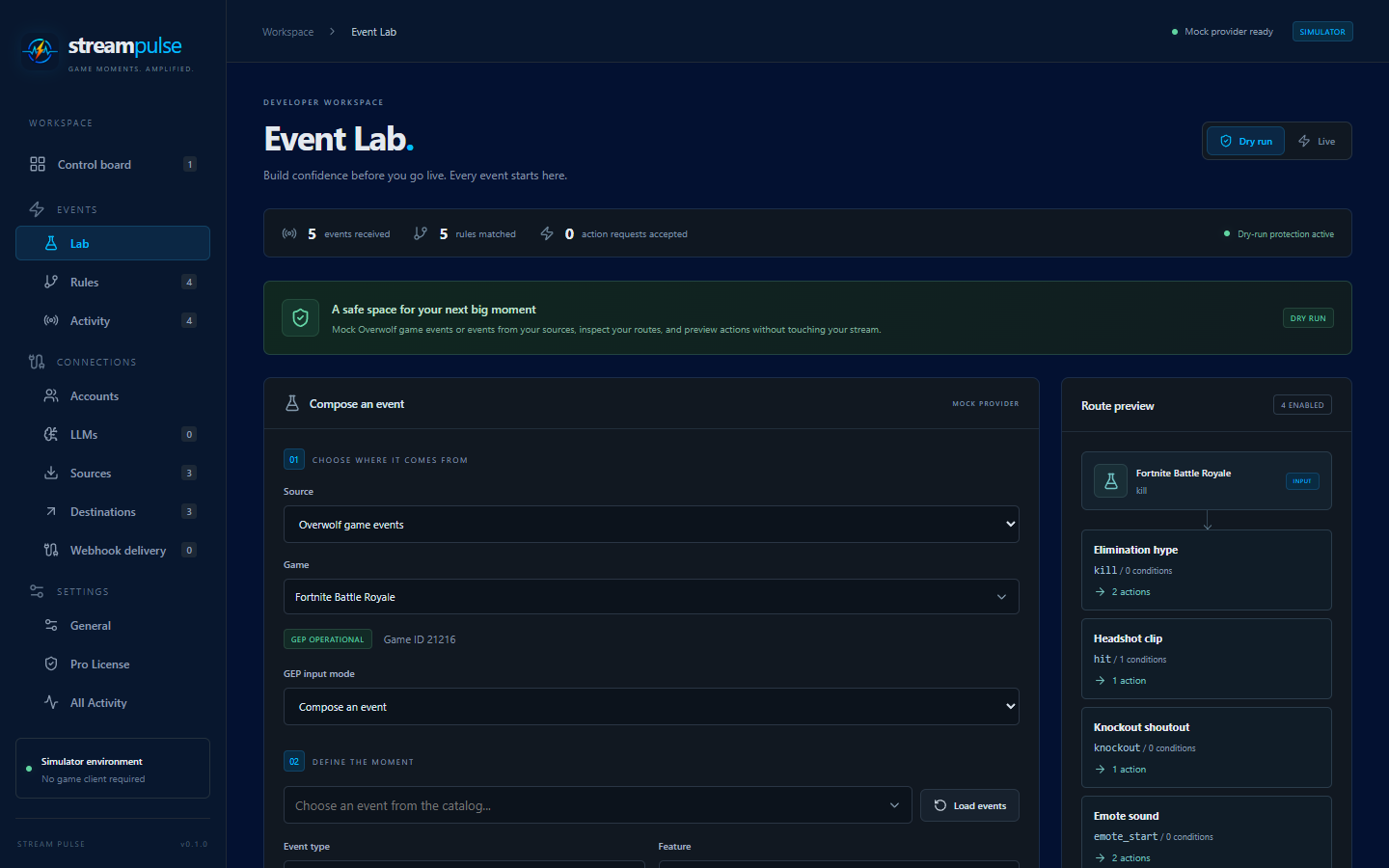
The Event Lab is the browser simulator. It lets you build and test rules without Overwolf or a running game.
task dev
Open http://127.0.0.1:5173. pnpm dev works without go-task. The simulator
opens on the Control board; the Overwolf app opens on Events > Rules.
First rule
- Open Connections > Destinations and add a Streamer.bot destination. Click Test connection; Save connection stays disabled until the test passes.
- Optionally discover the saved connection’s actions.
- Open Events > Rules, choose a game and event, and configure one or more actions.
- In Events > Lab, select the same game, enter an event and JSON payload, and choose Fire mock event.
- Open Events > Activity to see the triggered actions and re-trigger the event. Full logs, including mapped arguments, are in Settings > All Activity.
For a Fortnite example, use feature kill, event kill, game event type,
payload 1, and map an action argument as {"kills":"{{data}}"}.
Indexed GEP keys
Select Overwolf game events, choose a game, then Load events to fetch
its current definitions from Overwolf. Selecting a definition with is_index
automatically enables Indexed key. You can also enable it manually.
Enter a non-negative Key index: item with index 0 becomes item_0;
item_ also becomes item_0, without a duplicate underscore.
The index applies to event names and info keys, not to features or categories. Rules must match the resulting key (or use a supported wildcard).
Raw GEP envelope preview and import
The composer shows the Raw GEP envelope preview that its values produce. It serializes payload data as GEP does, then uses the same normalizer as the live Overwolf provider. Game events have no feature in their normalized form; info updates retain their feature and category.
Choose GEP input mode > Import raw GEP envelope to paste callback JSON or select Import GEP JSON file (up to 1 MB). Supported envelopes include:
{
  "events": [
    { "name": "kill", "data": "{\"count\":2}" },
    { "name": "death", "data": null }
  ]
}
{
  "feature": "inventory",
  "info": {
    "items": {
      "item_0": "{\"name\":\"synthetic item\"}",
      "item_1": null
    }
  }
}
An envelope must contain either events or feature and info, not both.
Every event or category/key entry becomes a separate normalized event for the
selected game. The entire envelope is validated before anything is
dispatched; empty callback batches are no-ops. Importing only loads input:
click Fire mock event (or Fire live event) to dispatch it. Batch results
report total events, matches, previews, sends, and errors.
This works without internal Overwolf simulator APIs. It tests routing, not Overwolf’s game detection or feature registration.
Catalog requirements
The official game status catalog
lists game IDs, support state, and min_gep_version /
min_gep_version_electron. These are GEP provider versions, not game,
Stream Pulse, or minimum Overwolf client versions. The Lab displays them when
available. Refresh the game catalog in Settings or use Load events for the
selected game’s current metadata. Older bundled/cached catalogs may not yet
include version or indexed-key fields.
Dry run and live
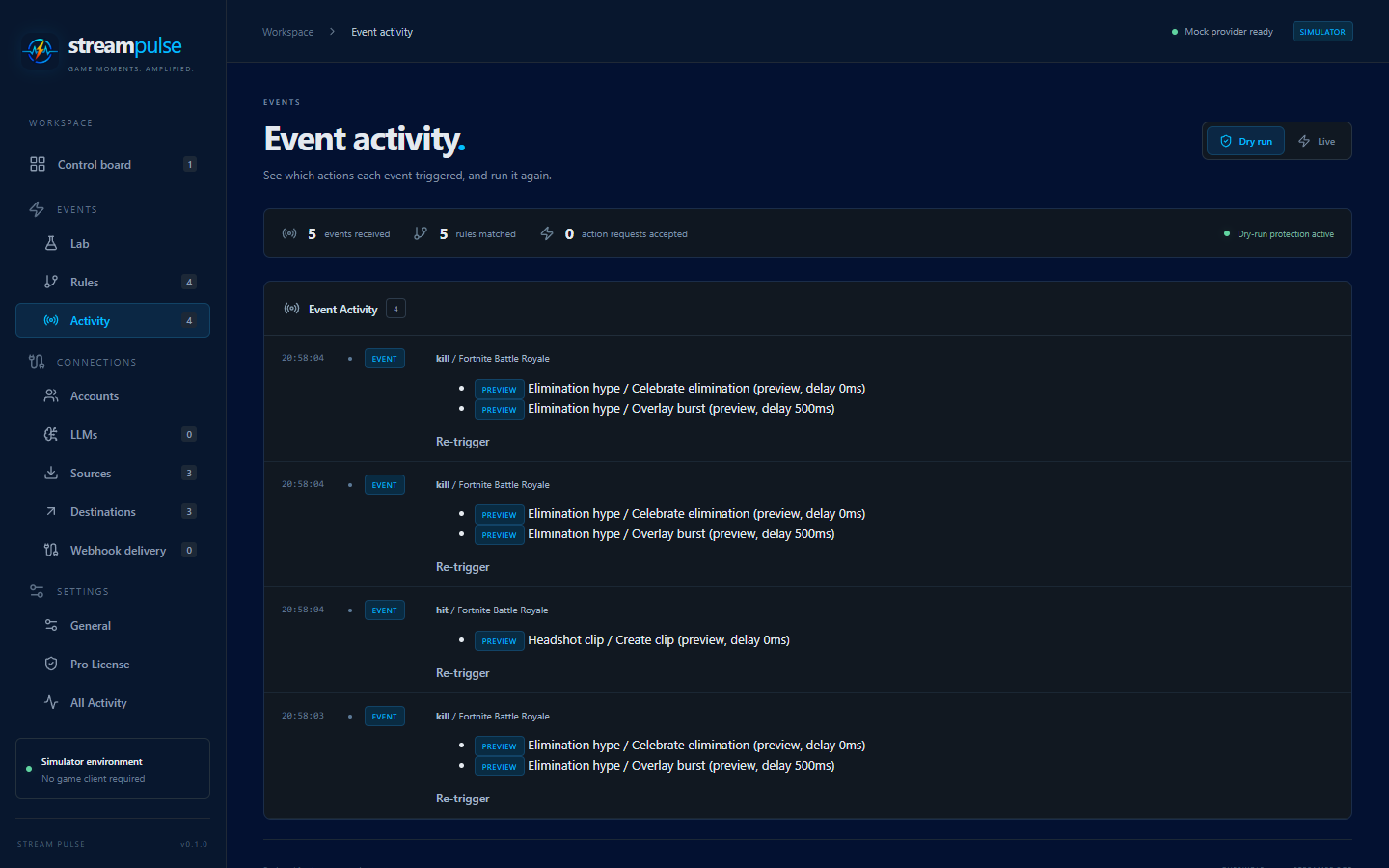
The simulator starts in dry run on every page load. It does not send action requests until you explicitly enable Live and confirm the warning.
Connection tests and action discovery contact real endpoints in either mode. Dry-run mapped payloads can be inspected in the activity log.
Mock games
The Lab can fire events for any game in the catalog, including games without live GEP support, and for custom games. Mock events cannot add live support for a game.
Mock source events
Choose a Source other than Overwolf game events to fire an event as if
it came from Streamer.bot, OBS, a custom WebSocket or REST source, or Twitch.
Pick a well-known event from the catalog or type a feature (optional) and event
name; the JSON payload becomes the event’s data. If sources of that type are
configured, Source instance tags the event with one of them. A configured
source is not required: rules for that source type still match.