
Accounts
StreamPulse Pro is required only for Stream Pulse-managed remote services, currently the hosted Kick gateway. Activate or refresh Pro in Settings > Pro License. Self-hosted Kick and user-provided relays remain free.
Manage identities under Connections > Accounts. Register and sign in here once, then select an account in each compatible source’s settings.
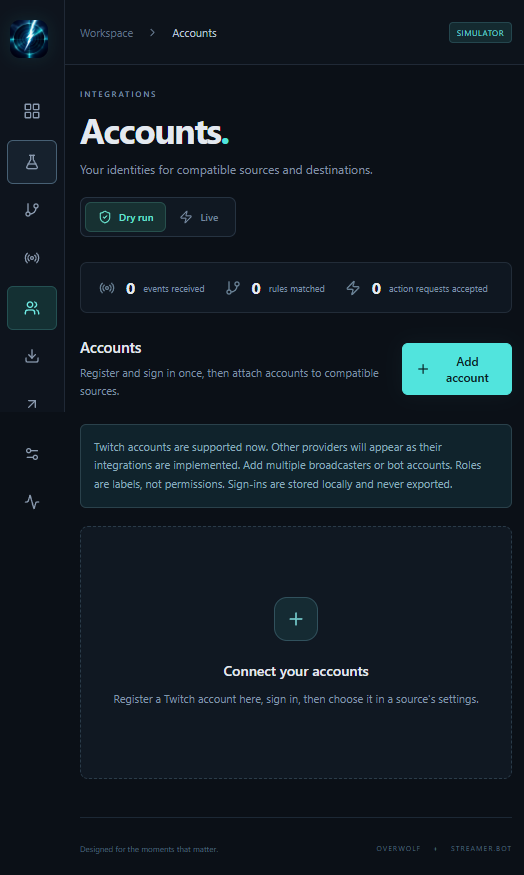
Register and sign in
- Select Add account, choose a provider, enter a name, and choose a role.
- Select Save account, then open Sign-in settings if it is not already expanded.
- Twitch uses the operator-bundled Client ID; users cannot override it. If it is unavailable, the operator must configure the build before sign-in.
- Choose Event permissions and any needed Destination action permissions. For additional Helix operations, enter their exact OAuth scopes under Additional OAuth scopes. Then choose Sign in with Twitch. Open the activation link and enter the displayed code.
- In Connections > Sources, edit a Twitch source and choose the account. Select which events that source should receive and save the source. Twitch destinations also select a sending account; chat and prediction actions select a broadcaster account per action.
Twitch, YouTube and Kick are the supported account providers. YouTube requires
StreamPulse Pro and uses operator-managed browser OAuth;
users never enter a Google client ID or secret. See
YouTube source. YouTube
read-only accounts use a channel @handle or channel ID. GitHub, GitLab,
Discord and other providers will be added with their integrations.
For Kick, register an account and open its sign-in settings. New Kick accounts connect through the operator-managed webhook gateway: Sign in with Kick shows a phrase and opens the gateway approval page, which continues to Kick. To keep credentials on your PC instead, set Connection to Self-hosted Kick companion and start the local companion with its server-side client secret. Either way, no client secret or Kick tokens are entered in the browser. Refresh accounts reloads saved sign-ins. Read-only Kick accounts use a channel slug and are verified through the configured gateway or companion. They can identify source channels and action targets, but do not grant subscription or moderation permissions. See Kick source and Kick destination. With a companion in Overwolf, pair the companion first. Account metadata alone does not grant desktop access.
Multiple accounts and sharing
Add separate entries for broadcasters, bots or other identities. Roles are descriptive labels, not permissions, and do not implement bot output on their own. More than one source can use the same account. Refreshes are shared per account, while each source has its own event selection.
Edit account (pencil icon) changes its display name and role. Client ID and permission changes in Sign-in settings save automatically. If a source needs permissions that are missing, go back to Accounts, enable them and sign in again.
Each account is a single row: provider icon, profile picture, name and login, role, and a sign-in status icon (hover for details). The Sign-in settings chevron expands and collapses the account’s settings, which also list the sources, destinations and actions that use it.
Kick profile pictures are looked up from the channel login through the configured gateway or companion and saved as account metadata, independently of sign-in. The target channel does not need to authorize Stream Pulse. Gateway lookups still require a connected gateway session; companion lookups use the operator’s app credentials. Known pictures remain visible after sign-out. Accounts without a channel login or a known profile picture show the default avatar.
Read-only accounts
Set Access to Read-only for a channel you can’t or don’t want to sign
in to, such as a friend’s channel your bot chats in. Enter its Channel login
(the twitch.tv/<login> name). Save account verifies the channel exists on
Twitch using any of your signed-in Twitch accounts (sign in to one first), then
stores its channel ID and profile picture. Read-only accounts never sign in, so
they can’t be a source’s signed-in account or a destination’s sending account.
They can be the target channel of Send chat message, and one of the
Channels to listen to of a Twitch source, for chat, raids and stream
online/offline (see
Twitch source). Stream
Pulse uses your signed-in account to reach the channel. A sign-in account may
also have a channel login, so chat can target it while it is signed out.
Prediction actions still require the signed-in broadcaster.
Only compatible accounts appear in source and destination pickers. Sources that require no provider account (OBS, Streamer.bot, custom WebSocket and REST) keep their existing connection settings.
If there are no registered Twitch accounts, the source settings explain what to do and provide Manage accounts, which opens the Accounts page. This navigation closes the source editor; save a source before leaving if you want to keep it.
Sign out and remove
- Sign out deletes the local sign-in and requests token revocation, keeping the account entry and its source attachments.
- Remove opens a confirmation dialog listing the sources, destinations and actions that use the account (up to five, then a count of the rest). When it is in use, type the account name to confirm. It removes the account and local sign-in, requests revocation, and detaches the references, including broadcaster selections in Twitch actions, which are then marked Needs attention. Twitch sources cannot receive events, and Twitch destinations cannot send actions, until another account is selected and signed in.
- Revocation failures appear in Settings > All Activity. If necessary, remove Stream Pulse’s access from Twitch’s account connections page.
Storage and migration
Account metadata is saved in configuration; sign-in credentials are stored
separately in local storage and are never exported. An exported account keeps its
ID and source references, but a new device needs a fresh sign-in.
Kick is the exception: its Kick tokens never reach the app. With the webhook
gateway, the gateway holds them and the app keeps only a revocable device
session in local storage (stream-pulse.gateway.v1); configuration stores the
connection type and gateway URL. With a companion, credentials live in the
companion’s private credential file and configuration stores its loopback
origin. Removing a Kick account detaches its configuration references and
revokes the gateway device or requests credential removal from the companion.
If the companion is unavailable, the failure is reported; remove its saved
access separately before sharing or retiring that companion.
Existing per-source Twitch sign-ins are migrated automatically when loading the app: each source’s sign-in becomes an account and that source is attached to it. Removing a source does not remove its account or sign-in.
See Twitch setup and Storage and privacy.